

Ordering Former UW Colleges Transcripts
When the UW Colleges closed in the summer of 2019, the University of Wisconsin Extended Campus began serving as the data custodian of education records for students who attended any of the two-year campuses prior to September 1, 2019. The UW Colleges transcript remains the official academic record of these former students.
Archived Catalogs
The course catalog archives provide essential information about academic policies, course descriptions, and degree requirements of the former UW Colleges from 1969-2018. You may also request a course syllabus or outline.
Replacement Diplomas
Degree Verification
Outside agencies, and other third parties, can verify a student’s degree earned using DegreeVerify through the National Student Clearinghouse.
On July 1, 2018, UW Colleges officially joined seven four-year UW institutions as branch campuses.
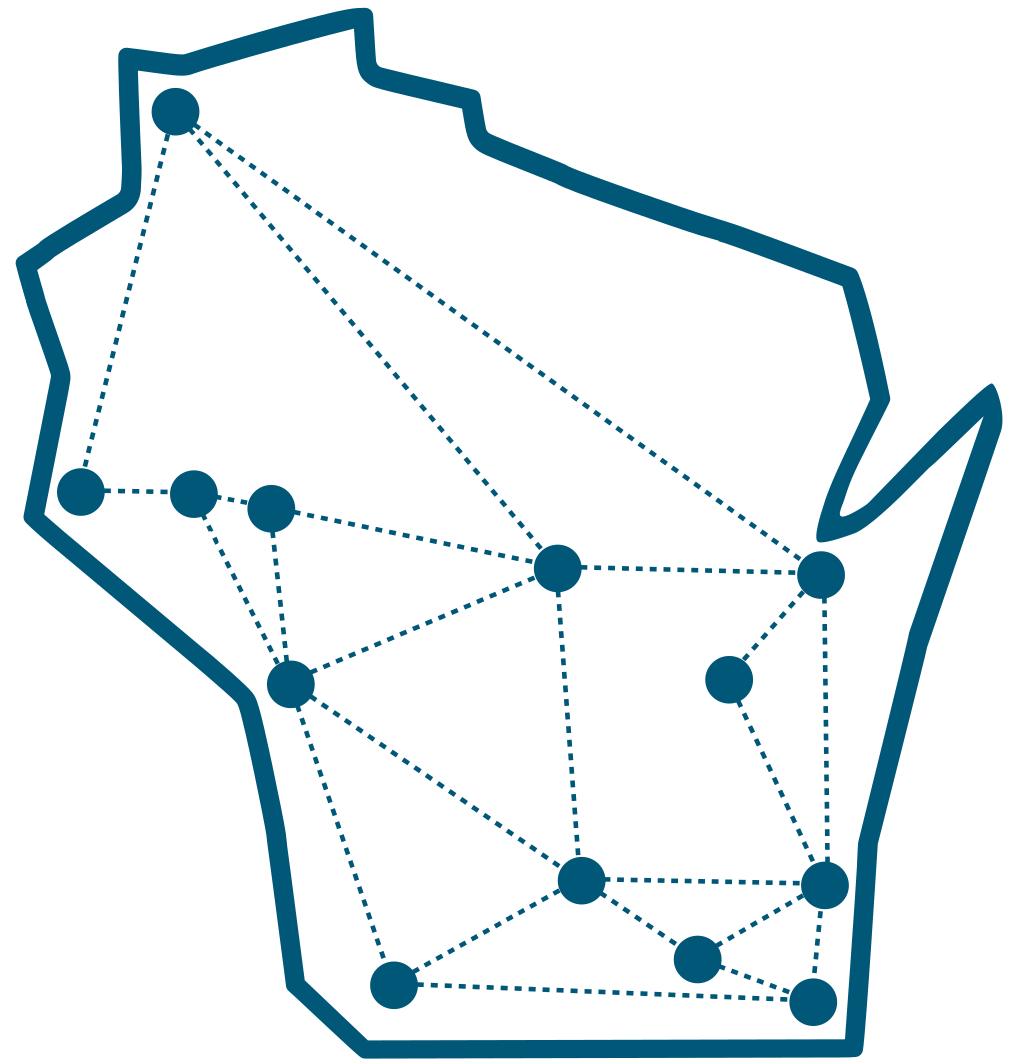 UW-Eau ClaireUW-Green BayUW-MilwaukeeUW-OshkoshUW-PlattevilleUW-Stevens PointUW-WhitewaterUW-Platteville Baraboo Sauk CountyUW-Eau Claire – Barron CountyUW-Oshkosh, Fond du Lac CampusUW-Oshkosh, Fox Cities CampusUW-Green Bay, Manitowoc CampusUW-Stevens Point at WausauUW-Green Bay, Marinette CampusUW-Stevens Point at MarshfieldUW-Platteville RichlandUW-Whitewater at Rock CountyUW-Green Bay, Sheboygan CampusUW-Milwaukee at Washington CountyUW-Milwaukee at Waukesha
 -
Select a University
-
Select a University
Use the dropdown box to begin.
Use the map or dropdown box to begin.
-
UW-Eau Claire
-
UW-Green Bay
-
UW-Milwaukee
-
UW-Oshkosh
-
UW-Platteville
-
UW-Stevens Point
-
UW-Whitewater
-
UW-Platteville Baraboo Sauk County
-
UW-Eau Claire – Barron County
-
UW-Oshkosh, Fond du Lac Campus
-
UW-Oshkosh, Fox Cities Campus
-
UW-Green Bay, Manitowoc Campus
-
UW-Stevens Point at Wausau
-
UW-Green Bay, Marinette Campus
-
UW-Stevens Point at Marshfield
-
UW-Platteville Richland
-
UW-Whitewater at Rock County
-
UW-Green Bay, Sheboygan Campus
-
UW-Milwaukee at Washington County
-
UW-Milwaukee at Waukesha
1098-T Tax Reporting
The final 1098-T tax forms from tuition paid in 2019 were all mailed in January 2020.
Collection of Outstanding Debt
UW Extended Campus monitors outstanding account balances, including transcript holds, of former UW Colleges students that existed prior to September 1, 2018.
UW College Courses Online
UW Extended Campus has partnered with UW System campuses to offer a variety of online degrees and programs.